Help & Tutorial
Getting Started
1. Add Your Boat
Navigate to Boats in the main menu to view your fleet. Click Add Boat to create a new vessel.
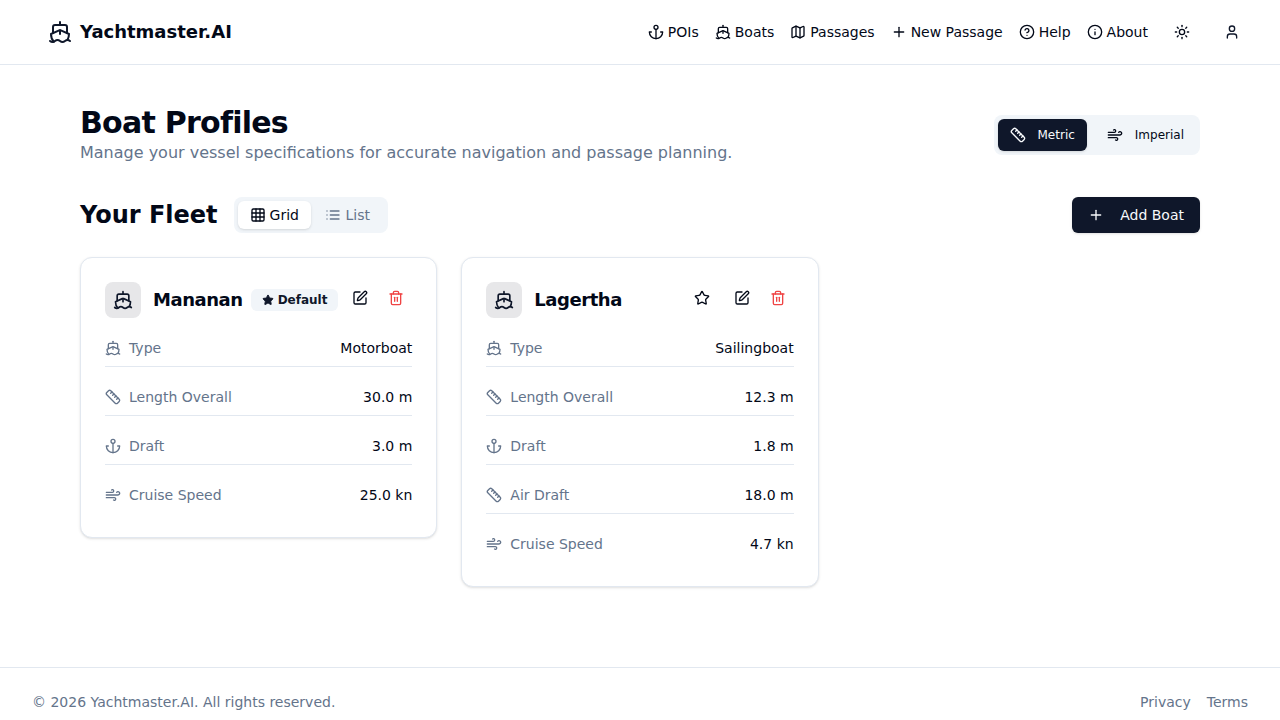
Fill out each section of the form below. Mandatory fields are required for basic planning; optional fields unlock comfort ratings, fuel calculations, and smart routing.
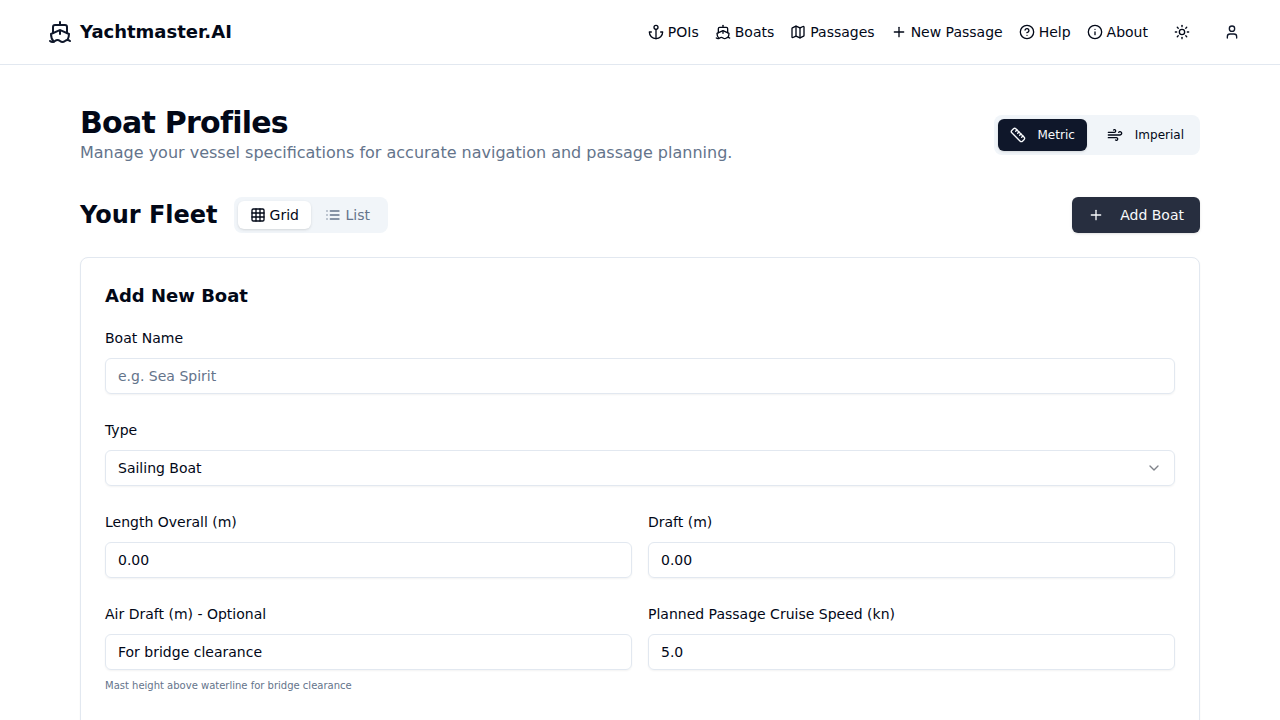
Required:
- Name - Your vessel's name
- Type - Sailing boat, motorboat, catamaran, etc.
- LOA - Length Overall (meters)
- Draft - Depth of keel (meters)
- Cruise Speed - Typical passage speed (knots)
Optional but useful:
- Fuel Capacity & Consumption - Enables range calculations
- Displacement & Waterline Length - Required for personalized comfort ratings (Ted Brewer Comfort Ratio)
- Air Draft - For bridge and cable clearance
Sailing Performance (sailing boats):
- Min Wind Speed / Max Speed - Effective wind range for routing
- Beam Reach / Upwind / Downwind % - Performance relative to base speed at each point of sail
Routing Config:
- Engine Assist - Allow motor when wind is unfavorable
- Depth Safety Margin - Extra buffer beyond vessel draft
- High Wind Threshold / Penalty - Wind speed where routing penalizes exposed legs
Favorite Boats
Click the star icon on any boat card to mark it as a favorite. Favorite boats are pinned to the top of your fleet and appear at the top of boat selectors when planning passages. This is useful if you have multiple boats in your fleet but mainly sail one.
Your boat specs drive: comfort ratings, fuel range, and personalized passage analysis.
Invite Friends & Earn Credits:
From your profile, you can invite friends and crew by email. For each accepted invite, you earn 5 free AI analysis credits. Track invitation status directly in your profile page.
2. Create a New Passage
Click New Passage from the navigation menu to start planning your route. The edit page shows your boat, route, and departure details.

Planning Steps:
- Select Boat - Choose from your fleet (auto-selected if you only have one)
- Set Departure Time - When you plan to leave (defaults to 3 hours from now)
- Plan Your Route - Add waypoints to your passage:
- Desktop: Double-click on the map to add a waypoint
- Mobile: Long-press (hold for 500ms) on the map to add a waypoint
- Or click POI markers (marinas, harbours, anchorages, moorings, fuel stations) to add them directly
- Adjust Speed - Fine-tune your planned speed for the passage
- Choose Route Mode - Select Manual (straight-line), Basic (depth-aware), or Smart (weather-aware) routing
- Save - Click "Save Passage" when your route is complete
Tip: Single clicks pan/drag the map freely without adding waypoints. This prevents accidental waypoint additions on touch devices.
3. View Passage Details
After saving, you'll be taken to the passage detail view where you can explore conditions along your route.

Panels:
- Map - Interactive route display with all waypoints, overlays, and layer controls
- Playback - Step through your passage at each waypoint
- Conditions Strip - Timeline overview of comfort along your route
- Inspection Waypoints - Detailed waypoint list with weather data
- AI Analysis - Four modes: Safety, Weather, Timing, Optimization
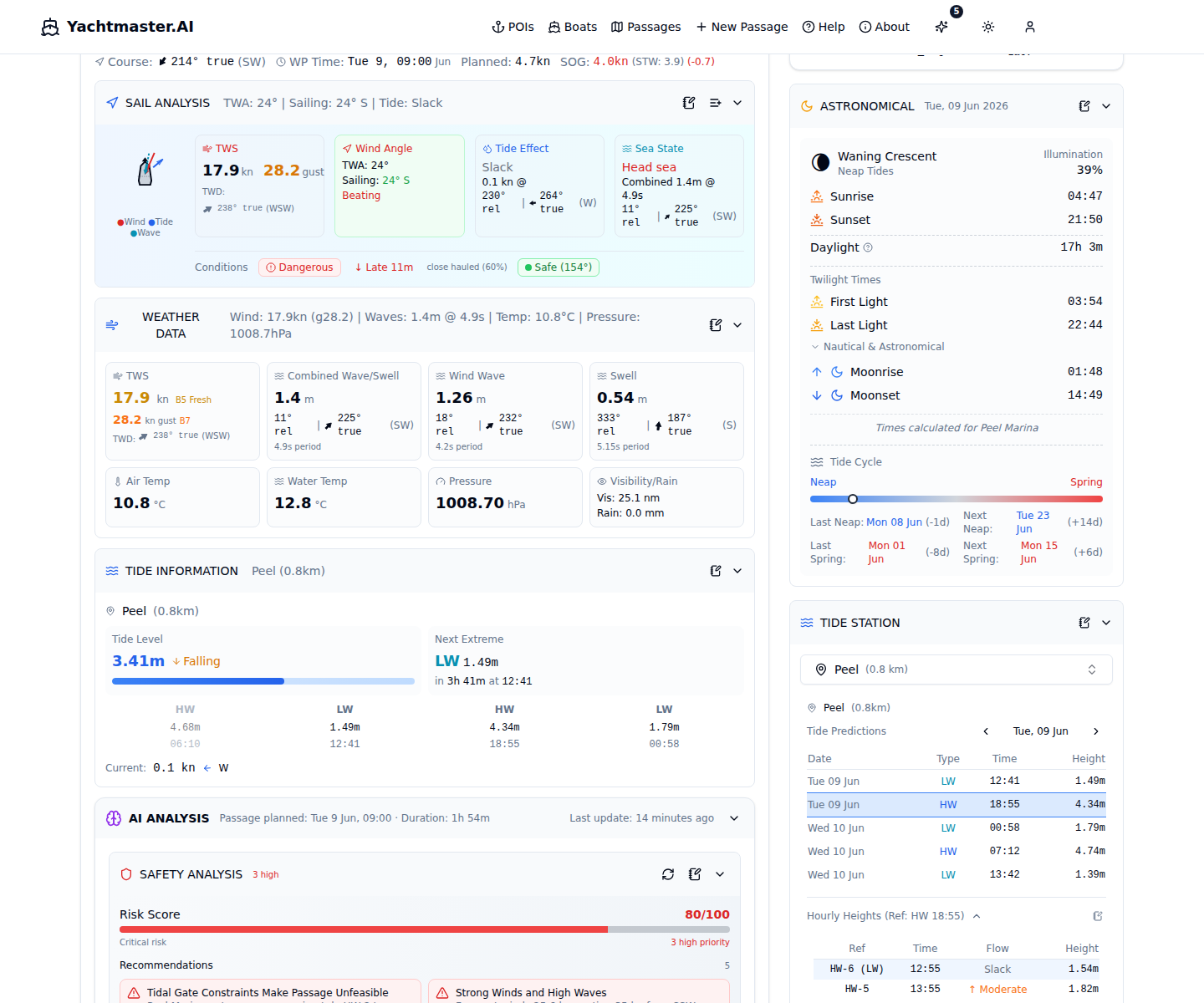
- Astronomical Data - Sunrise/sunset, twilight times, moon phase
- Notebook - Rich text log with AI chat assistant
- Sharing - Create shareable links for crew and contacts
Weather and tide data are fetched automatically for each waypoint. If data is stale, click "Update Weather Data" to refresh.
4. Playback & Simulation
The playback panel lets you simulate your passage and see conditions at each waypoint.
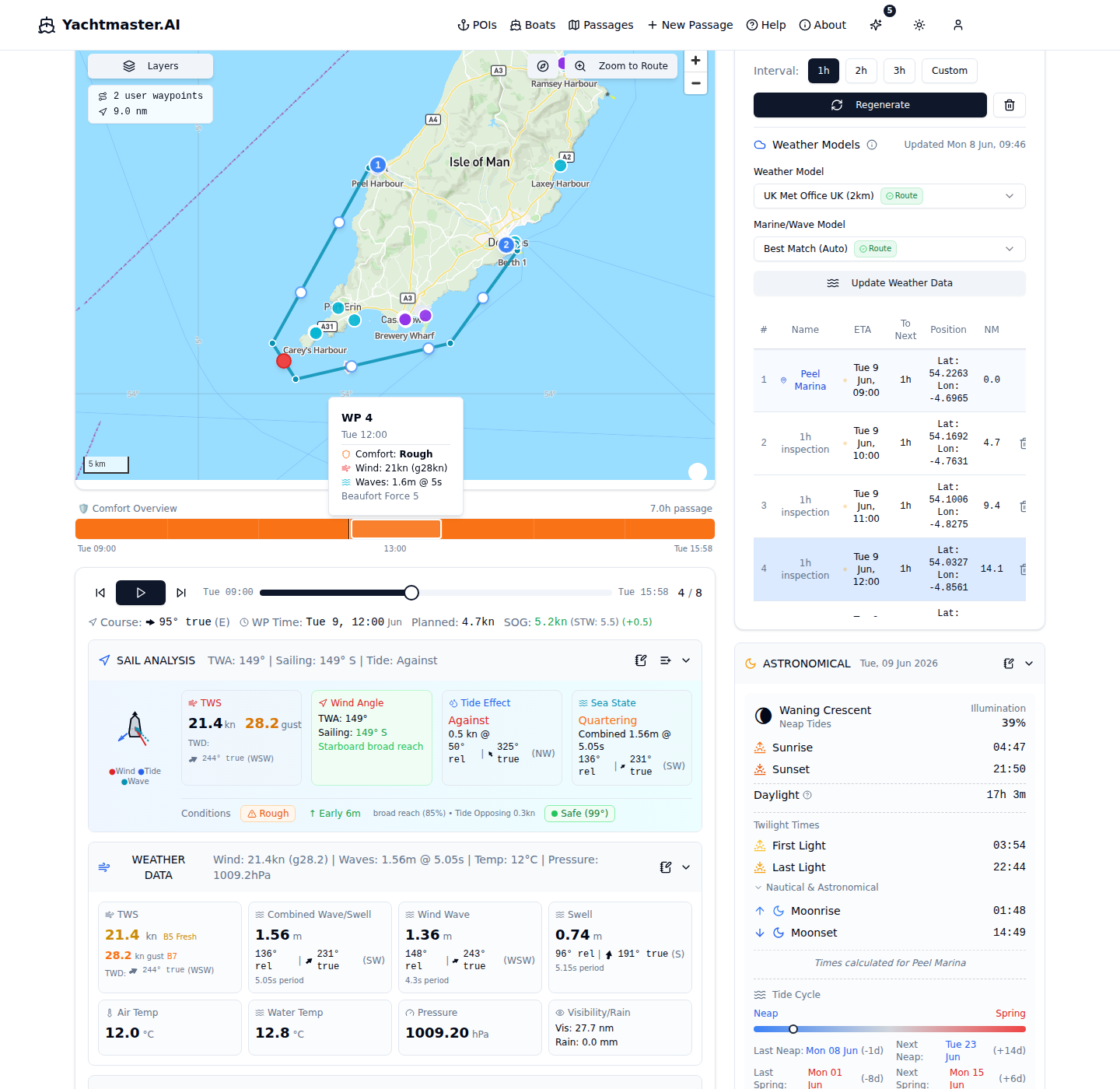
Playback Controls:
- Play/Pause - Automatically step through waypoints
- Previous/Next - Manual navigation between waypoints
- Slider - Jump to any point in the passage
- Add to Notebook - Capture current conditions as a card
- Batch Capture - Capture all waypoint data to notebook at once
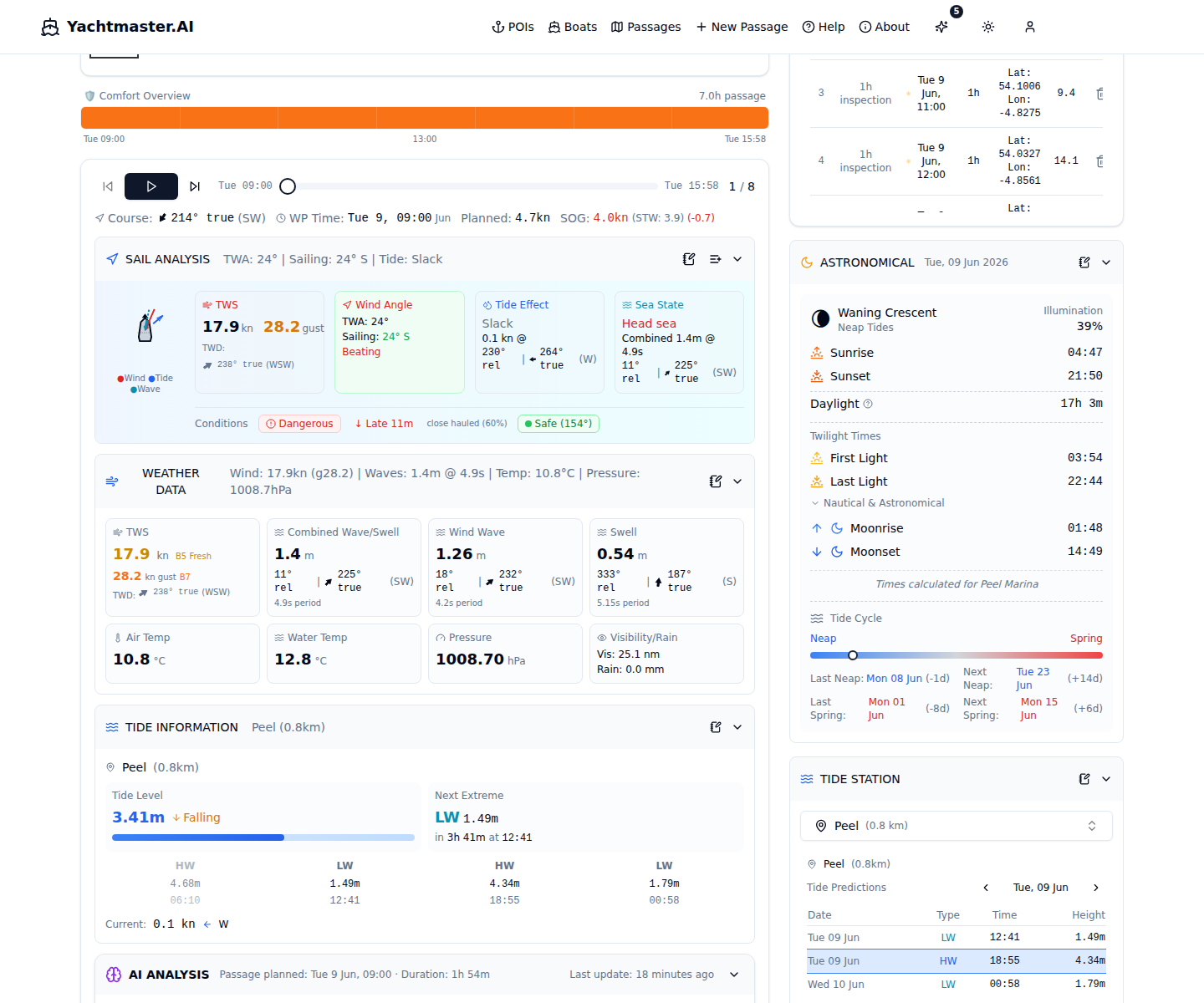
Sail Analysis Shows:
- Visual boat diagram with wind, tide, and wave angles
- True Wind Speed (TWS) with Beaufort scale indicator
- True Wind Angle (TWA) and sailing point of sail
- Tidal stream direction and speed
- Combined wave height and period
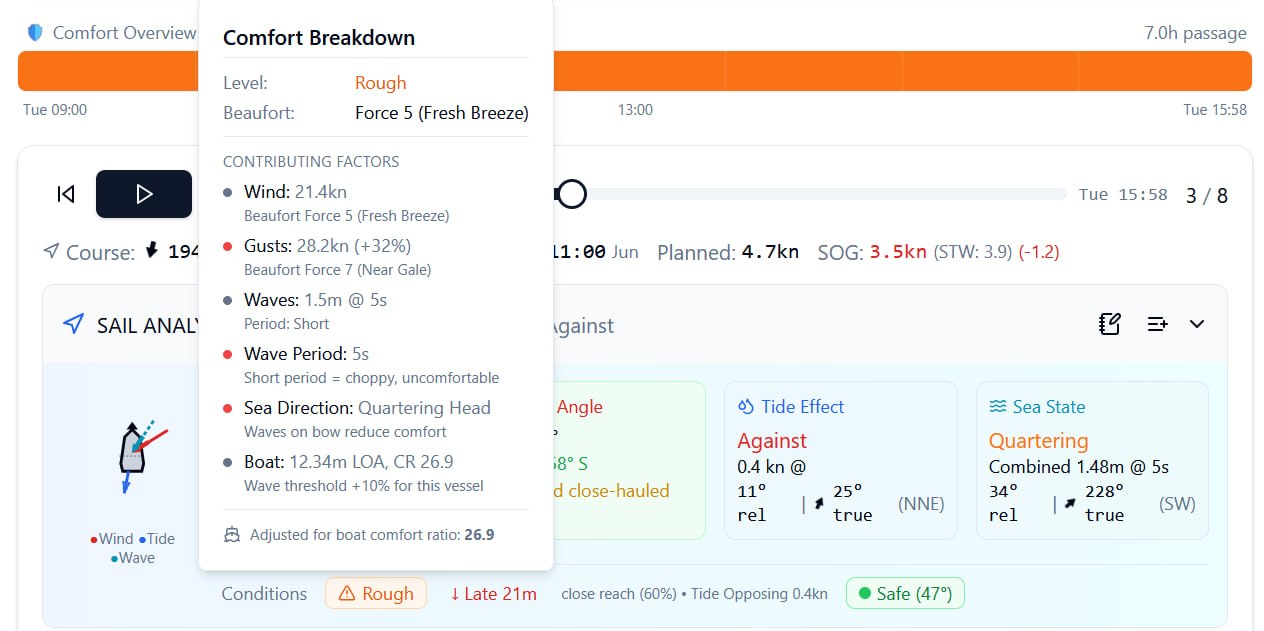
- Comfort rating for conditions
- ETA impact from current conditions
5. Points of Interest (POIs)
Browse and search marinas, harbours, anchorages, moorings, and fuel stations to plan stops along your route.
POI Features:
- 5 types: Marina, Harbour, Anchorage, Mooring, Fuel Station
- 9 amenity filters: Fuel, Water, Electricity, WiFi, Showers, Laundry, Groceries, Chandler, Restaurant
- Search & filter by name, type, amenity, or country
- Favorites: Star POIs for quick access
- Detail sheets: Contact info, navigation notes, depth, VHF channel
- Map selection: Pick departure/arrival POIs directly from the map
Passage View Deep Dive
Passage Header & Stats
The header shows your vessel and passage status. The stats panel displays route information and allows inline editing of key parameters.
Editable Fields:
- Status - Draft, Planned, Active, or Completed
- Planned Start - Departure date and time
- Planning Mode - Depart-at (set departure, calculate arrival) or Arrive-by (set target arrival, calculate required departure time)
- Planned Speed - Vessel speed in knots (affects all ETAs)
- Actual Fuel - Current fuel level for range calculation
Calculated & Actions:
- Total Distance - Great Circle distance of entire route
- Duration - Total passage time based on speed
- ETA - Estimated arrival based on start time and speed
- Export GPX - Download route for chartplotters
- Share - Create a shareable link for crew/contacts

Vessel Specs Panel
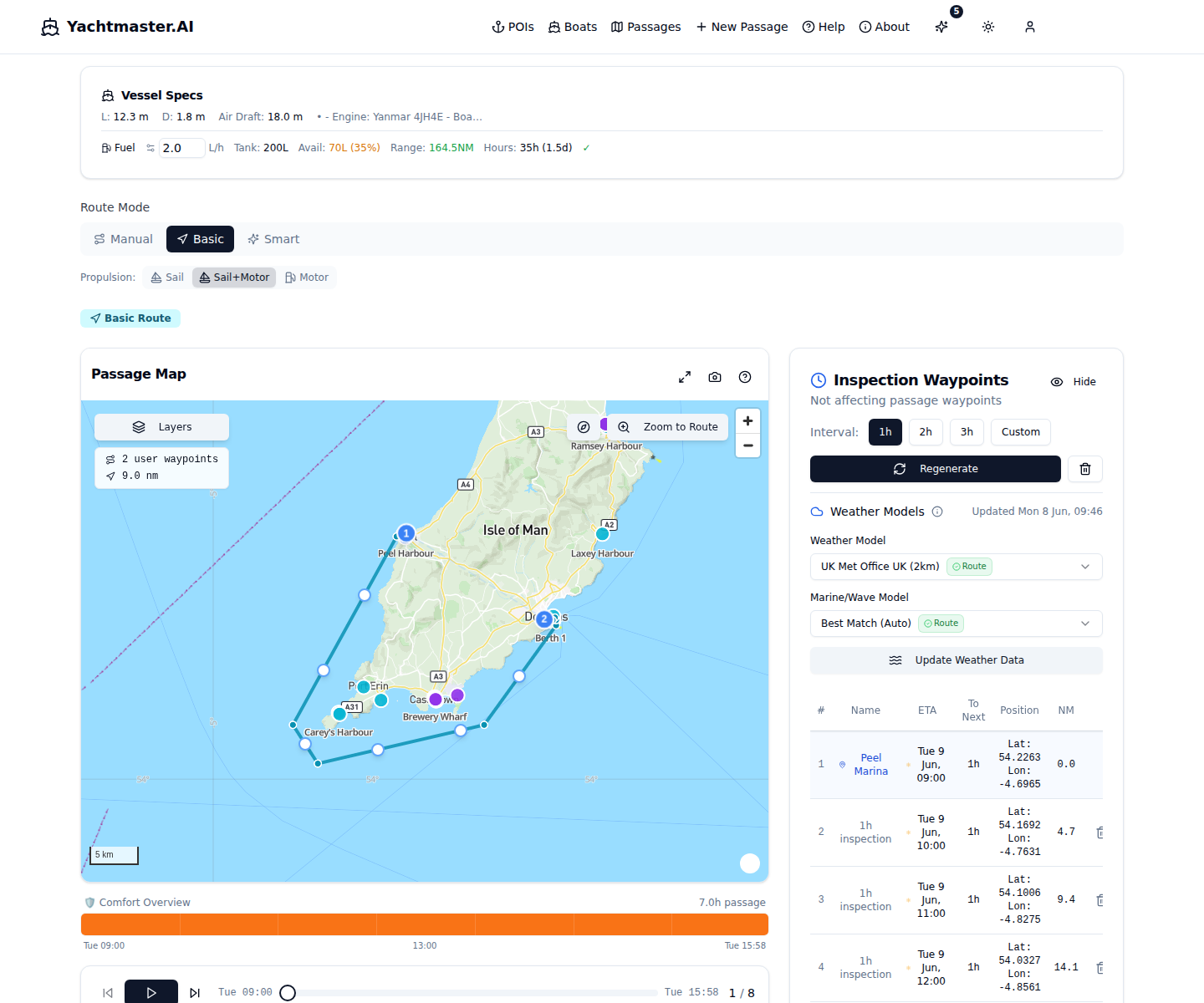
Shows boat dimensions and fuel calculations. Check if you have sufficient range for your passage.
Fuel Calculations:
- Range = (Available Fuel ÷ Consumption Rate) × Speed
- Sufficiency Check - Compares range to passage distance
- Engine Hours - Estimated hours under power required
Always plan with a 20-30% fuel reserve for unexpected conditions.
Inspection Waypoints Panel
This panel lists all waypoints along your route with generated inspection points. These points show weather, tidal, and current conditions at specific times during your passage.
Waypoint Interval Options:
- 1 hour - Detailed analysis for short passages
- 2 hours - Balanced for most passages
- 3 hours - Overview for longer passages
- Custom - Set your own interval
Weather Model Selection:
- ICON EU - European model (7km), best for UK/Europe
- GFS Global - Global model (13km), good for remote areas
- ECMWF IFS - Premium accuracy (9km), long passages
- UK Met Office - High-res UK (2km) or Global (10km)
- AROME HD - Ultra-high res (1.5km), French waters
Each waypoint shows: sequence, name, ETA, time to next, coordinates, distance remaining, and last weather update time.
Sail Analysis & Navigation Theory
The core of the playback panel - real-time interpretation of conditions for navigation decisions.
True Wind Speed (TWS)
The actual wind speed over the water, not affected by your boat's movement. Displayed with Beaufort scale indicators (0-12) for quick interpretation.
Beaufort Scale Reference:

TWS vs. Apparent Wind: TWS is what the forecast predicts. Apparent wind (what you feel) increases upwind and decreases downwind. TWS lets you compare actual conditions to forecasts accurately.
True Wind Angle (TWA)
The angle between wind direction and your heading. Determines your point of sail and expected boat performance.
Points of Sail:
The visual display shows your boat with wind arrow, plus Port/Starboard tack indicator. Use TWA to optimize sail trim and anticipate speed.
Tidal Stream Effects
Tidal currents can significantly affect your passage - either as a help or hindrance.
With the tide: Adds to your speed over ground (SOG)
Against the tide: Reduces SOG, potentially creating dangerous waves
Across the tide: Causes lateral drift, requires course correction
Sail Analysis shows current speed, direction, and displays a tide arrow on the boat diagram showing the stream's effect relative to your heading.
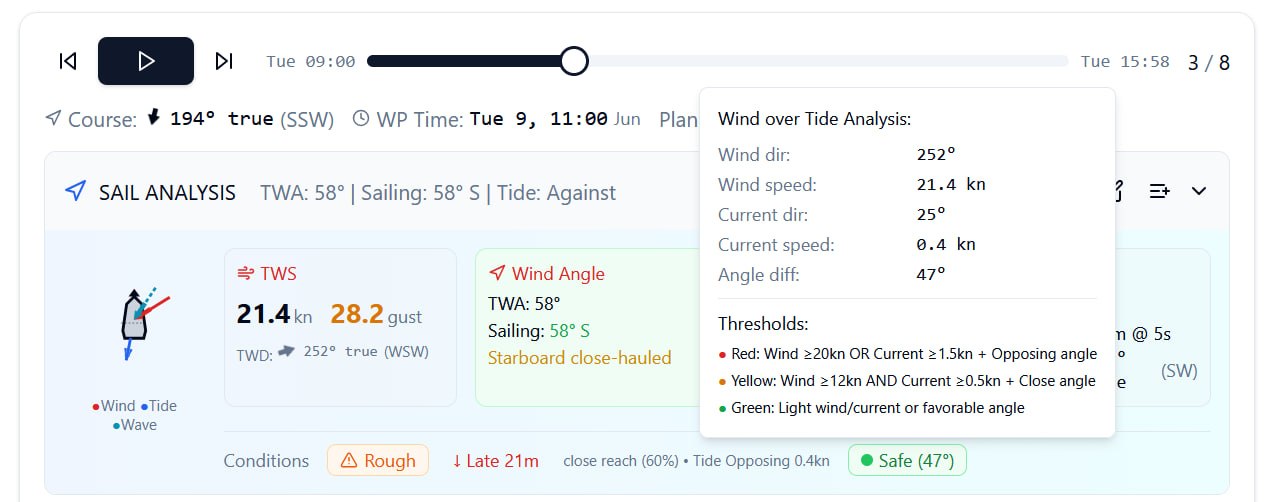
Wind Over Tide Warning
One of the most dangerous conditions for small vessels. Occurs when wind opposes tidal current direction.
Warning Levels:
- RED: Wind directly opposing tide - Potentially dangerous
- YELLOW: Partial opposition - Expect rougher seas
- GREEN: Wind with tide or minimal opposition
A 15-knot wind against a 3-knot tide can create waves equivalent to 25 knots with no tide. Always check wind-over-tide before departing, especially in areas with strong currents.
Sea State Analysis
Combined wave analysis including height, period, and direction.
Combined Wave Height: Total wave height including swell and wind waves
Wave Period: Time between wave crests - longer periods = smoother motion
Wave Direction: Relative to your heading - head seas vs. following seas
Short period waves (4-6 seconds) are choppy and uncomfortable. Long period swell (10+ seconds) is typically more comfortable despite larger height.
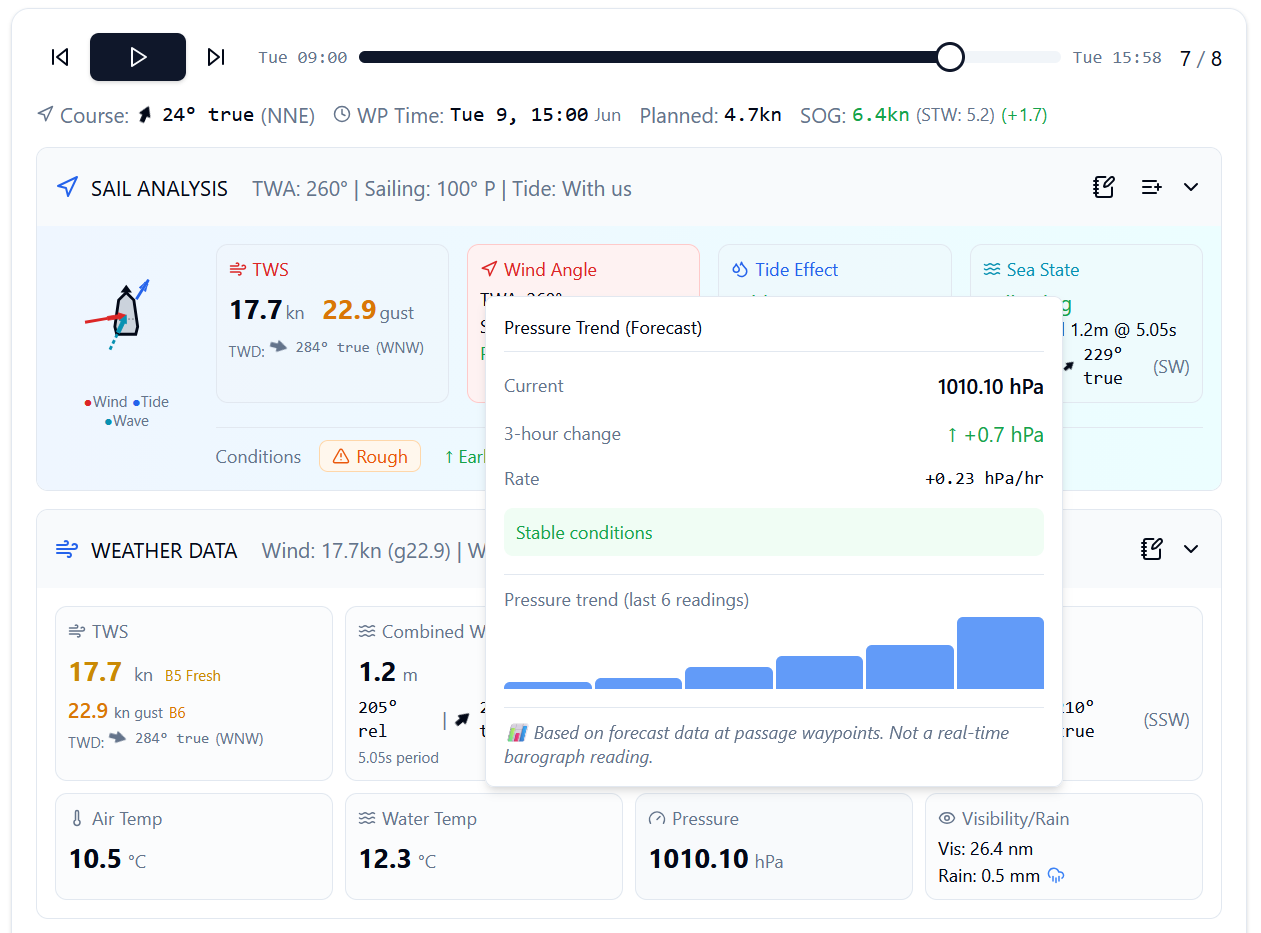
Pressure Trend
Atmospheric pressure trends indicate weather pattern changes. Rising pressure typically means improving conditions; falling pressure signals deteriorating weather.
Tide Information
Detailed tidal predictions from WorldTides.info. Search for alternative stations, view HW/LW tables with hourly breakdowns, and add data to your notebook.
Tide Station Search:
- Click the station name to open the search dropdown
- Type a station name or location - searches within 1000km of your route
- Results show station name, distance, and data source
- Select a station to switch the tide predictions to that location
- The nearest station to your route is selected automatically by default
HW/LW Table:
- Shows High Water (HW) and Low Water (LW) times and heights for days around your passage
- HW rows highlighted in blue, LW rows in cyan
- Click any row to select it - the hourly table updates to use that HW/LW as reference
- The nearest HW to your passage start time is auto-selected on load
- Navigate days with the arrow buttons (prev/next) to see more tide data
Hourly Heights Table:
- Click "Hourly Heights" to expand a detailed table showing tide height every hour relative to the selected HW/LW
- Columns: time offset from HW, absolute time, flow rate (color-coded), and tide height
- Flow rate shows ebb/flood direction and speed - color-coded for quick assessment
- Use the notebook icon to capture the hourly table to your passage notebook
Other Information:
- Tidal Stream - Speed and direction at current waypoint
- Lunar Data - Moon phase, sunrise/sunset, moonrise/moonset
- Spring/Neap Indicator - Whether tides are stronger or weaker
Spring vs. Neap Tides:
Spring tides (Full/New Moon) have larger ranges and stronger currents. Neap tides (Quarter Moons) have smaller ranges and gentler currents. Plan passages accordingly - spring tides in areas like the Solent can exceed 4 knots.

AI Recommendations
AI-generated analysis of your passage with risk assessment, recommended windows, and actionable items. Choose from four analysis modes depending on what you need.
Analysis Modes:
- Safety - Overall risk assessment, hazards, wind-over-tide warnings
- Weather - Detailed weather analysis, pattern changes, visibility
- Timing - Tidal windows, departure/arrival timing, daylight hours
- Optimization - Speed adjustments, route alternatives, fuel efficiency
Risk Score & Recommendations:
0-100 scale assessing overall passage safety based on weather, tides, and vessel specs. Each analysis also provides prioritized recommendations (HIGH/MEDIUM/LOW) with categories for weather, tides, timing, and safety.
Disclaimer: AI recommendations are advisory only. Always verify with official sources and apply your own judgment.

Passage Notebook
A rich-text editor with AI chat assistant for documenting your passage plan, observations, and notes.
Editor Features:
- Slash commands (/h1, /bullet, /todo, etc.)
- Formatting toolbar (bold, italic, headings)
- Drag and drop block reordering
- Image paste from clipboard with resize
- Auto-save with status indicator
- Table of Contents sidebar
AI Chat Sidebar:
- Conversational AI with streaming responses
- Context-aware (weather, tides, boat specs, harbour info)
- Toggle which context the AI considers
- Suggestion chips for quick-start prompts
- Chat history saved to database
- Insert AI responses directly into notebook
Insertion Types:
Add content to the notebook from: Sail Analysis, Weather Data, Weather Summary, Tide Info, Tide Station, Astronomical Data, AI Analysis, AI Chat, Map View, and AI Suggestions.
Print / PDF Export:
Print your notebook as a formatted document with A4 layout, header (route, boat, departure) and footer (timestamp, page numbers). Use the print button to open a formatted print window - print directly or save as PDF for offline reference or sharing with crew.
Smart Routes
Choose how your route is calculated between waypoints. Three modes are available depending on how much automation you want.
Manual (straight-line)
Waypoints connected by direct lines. Good for simple routes in open water or when you already know the safe path.
Basic (depth-aware)
Route considers minimum depth requirements and avoids shallow areas. Safer for vessels with deeper draft or unfamiliar waters.
Smart (weather-aware)
Combines depth awareness with weather, wind direction, and your vessel's sailing characteristics to calculate an optimized route.
Smart Route Settings:
- Minimum Depth Avoidance - Shallowest depth your route should use
- Maximum Height Clearance - Tallest bridge/cable your vessel can pass under
- Engine Assist - Allow motor assistance for sailing vessels in unfavorable wind
- Propulsion Mode - Sail Only, Sail + Motor, or Motor Only
Conditions Strip
A horizontal timeline at the top of the passage view showing comfort conditions along your entire route at a glance. Hover any segment for detailed analysis.
- Color-coded segments - Each segment represents a waypoint, colored by comfort level (green = comfortable, amber = moderate, red = rough)
- Dimension toggle - Switch between wind comfort, wave comfort, or combined comfort view
- Clickable segments - Jump directly to any waypoint in the playback panel
- Hover for details - See wind-over-tide analysis or comfort breakdown depending on conditions at that waypoint

Map Layers & Overlays
The passage map supports multiple data overlays that you can toggle on and off using the layer controls popover.
Toggleable Overlays:
- Wind arrows at waypoints
- Wave arrows at waypoints
- Current/ocean flow arrows
- Day/night terminator line
- Comfort-colored route line
- Route visibility toggle
- Buoy observation markers
- Orca sighting markers
Particle Overlays:
- Wind particles - Animated wind flow visualization
- Current particles - Ocean/tidal current animation
- Wave particles - Wave direction animation
- Adjustable density and speed controls
Map Capture:
Click the camera icon in the map controls to take a high-resolution screenshot of the current map view (including route, waypoints, and all active layers) and insert it directly into your notebook.
Astronomical Data
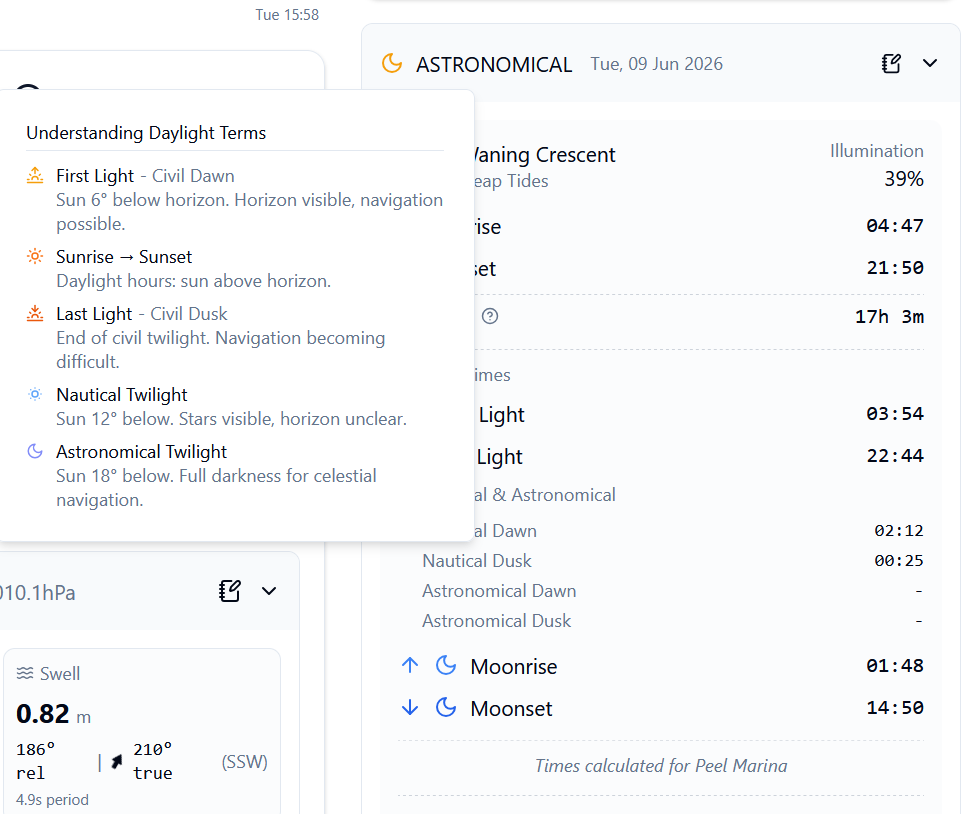
Detailed astronomical information for passage planning, including all twilight levels.
Sun:
- Sunrise and sunset times (timezone-aware)
- Civil twilight start/end (sun 6 degrees below horizon)
- Nautical twilight start/end (sun 12 degrees below horizon)
- Astronomical twilight start/end (sun 18 degrees below horizon)
- Day length calculation
Moon:
- Moon phase (name and visual), illumination percentage
- Moonrise and moonset times
- Moon age in days
- Spring/Neap tide indicator
Sharing Passages
Share your passage with crew, friends, or shore contacts using shareable links.
Share Scopes:
- Basic: Route, vessel details, waypoints, weather, sail analysis, astronomical info
- Full: Everything in Basic plus notebook content and AI analysis (read-only)
Link Management:
- Set expiration (7 days, 30 days, or never)
- Copy share URL to clipboard
- Regenerate link (revokes old URL)
- Revoke/delete links to remove access
Recipients get a read-only view of the passage. They can browse weather and playback data, but cannot edit anything.
Live Observations
Real-world observation data displayed directly on the map alongside your route.
Buoy Stations:
- Markers for buoy stations near your route
- Click for station details and latest readings
- Mini chart showing wave height and wind speed over time
- Useful for verifying forecast accuracy
Orca Sightings:
- Markers for reported orca sightings near your route
- Click for sighting date, damage level, source
- Relevant for passages in orca-active waters
Important Safety Disclaimer
Yachtmaster.AI provides passage planning assistance and weather data for informational purposes only. You remain solely responsible for navigation decisions and the safety of your vessel and crew.Always consult official sources (Admiralty charts, Notices to Mariners, weather services), use proper judgment, and follow maritime regulations. This service, underlying data providers, and our code may contain errors. AI-generated recommendations are advisory only and should never replace your own seamanship, experience, and judgment.
Frequently Asked Questions
Live Model Status
Real-time status of all weather and marine forecast models, showing when they were last updated and when the next update is expected. Data is fetched from Open-Meteo's public metadata endpoints.
Don't see your sailing area?We're actively expanding our coverage. Let us know what areas you'd like to see added.
Request CoverageLast updated: February 2026